What is the CullingGroup API?
It is useful when you want to switch behavior based on whether an object is visible or how far it is from the player.
For example:
- Deactivate objects that are not visible to the camera.
- Skip AI processing for characters that are far away.
- Prevent enemies from spawning while a spawn point is visible to the camera.
What is Vision?
CullingGroup is a great feature, but it can only be accessed from scripts and the usage is a little tricky, so it is not something you can just drop in and use right away.
Vision is a library that makes CullingGroup easy for anyone to use.
Vision features
- Components that make it easy to access CullingGroup
- An intuitive visual editor
- High performance
The video below shows one example of using Vision to deactivate objects that are not visible to the camera.

You can implement this feature without writing code.
Installation
You can download the latest version of Vision from the GitHub repository.
Releases: https://github.com/mackysoft/Vision/releases
Usage
1. Create a Culling Group Proxy
First, create the CullingGroupProxy that serves as the foundation of Vision.
Select the “Tools/Vision/Create New CullingGroupProxy” menu item
A GameObject like the one below will be created.
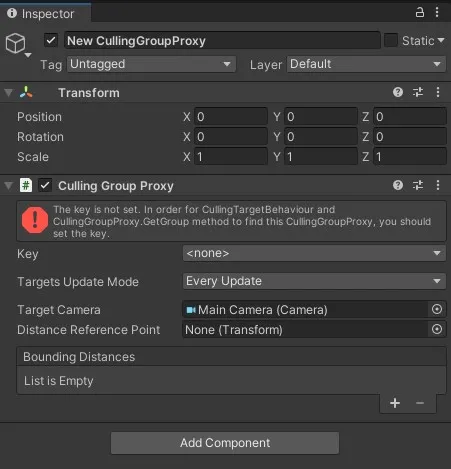
Assign a key to the created CullingGroupProxy
At first, an error saying that no key is assigned will appear, so assign a key.
By default, the “Main” key is available.
2. Add a Culling Target Behaviour
Add it from the “Component/MackySoft/Vision/Culling Target Behaviour” menu
Attach CullingTargetBehaviour to objects such as:
- Objects you want to deactivate when they are not visible to the camera
- Characters that should not run AI when they are far from the player
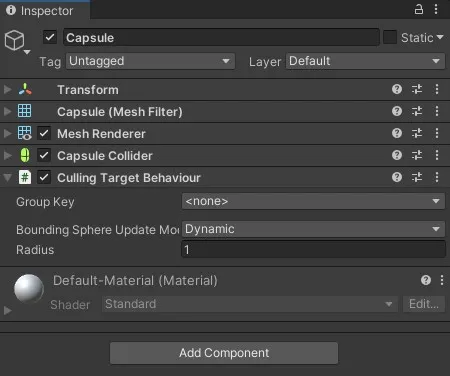
Adjust the sphere radius
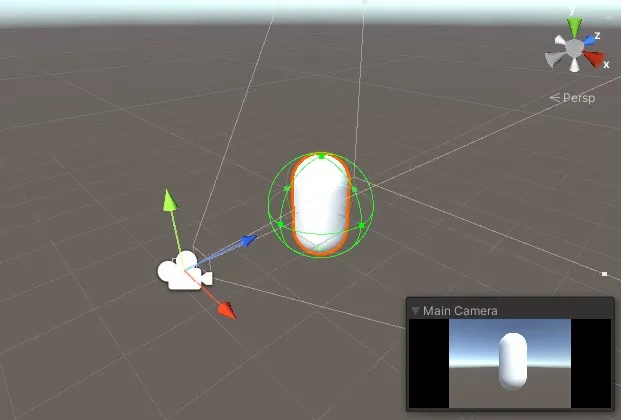
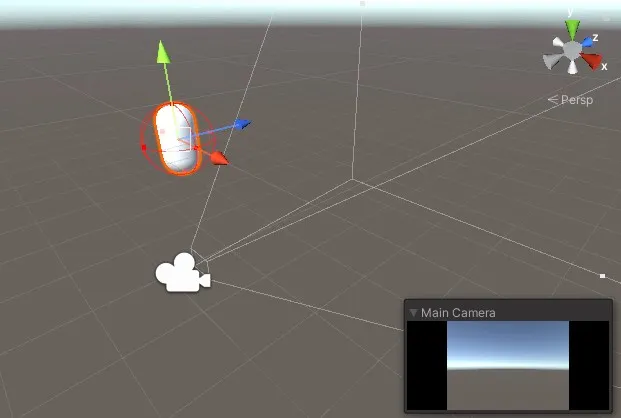
Objects with CullingTargetBehaviour attached will display a sphere (Bounding Sphere) like the one below.
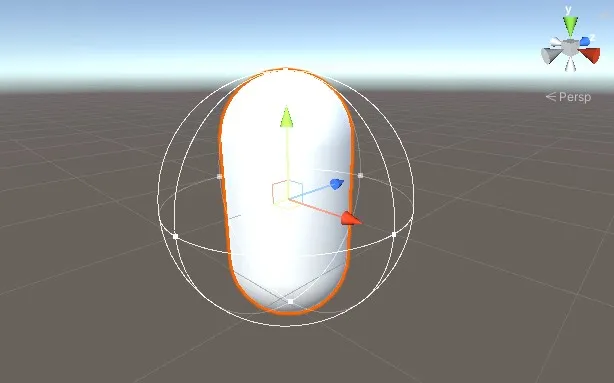
This sphere is required for calculating whether the object is visible to the camera and how far it is from the player.
So make sure the sphere fully encloses the object.
As shown below, the sphere changes color depending on whether it is visible to the camera.
Assign the key
CullingTargetBehaviour’s GroupKey is used to find the CullingGroupProxy with the same key. When CullingTargetBehaviour starts up, it registers itself with the CullingGroupProxy that shares the same key.
Set Bounding Sphere Update Mode
This value is important for performance.
BoundingSphereUpdateMode is set to Dynamic by default. That means the sphere’s position and radius are updated every frame.
However, some objects do not move. In those cases, setting BoundingSphereUpdateMode to Static lets you avoid unnecessary update cost.
3. Receive the callback
To receive notifications when the sphere’s visibility and relative distance state changes, use CullingTargetBehaviour.OnStateChanged.
(For those who are thinking, “Wait, doesn’t that still mean I have to write code?”, there is also a general-purpose component that does not require coding.)
using UnityEngine;
using MackySoft.Vision;

[RequireComponent(typeof(CullingTargetBehaviour))]
public class ReceiveCallbackExample : MonoBehaviour {

    void Awake () {
        var cullingTarget = GetComponent();
        cullingTarget.OnStateChanged += OnStateChanged;
    }

    void OnStaeteChanged (CullingGroupEvent ev) {
        if (ev.isVisible) {
            Debug.Log("Visible!");
        } else {
            Debug.Log("Invisible!");
        }
    }
}
General-purpose components
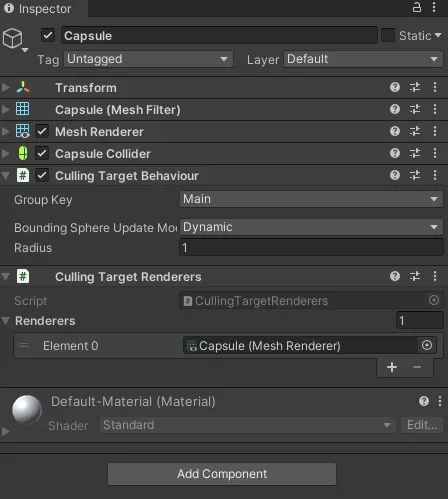
Culling Target Renderers
A component that enables or disables the registered Renderers based on the sphere’s visibility.
The functionality shown in the opening video is implemented with this component.
Closing Thoughts
We use this in actual development, and its usability, performance, and behavior on real devices have all been verified.
GitHub: https://github.com/mackysoft/Vision